The Latest

The ability to extract melodies from audio is bound to be welcomed by any producer. There are of course third party applications and plug-ins that are up to the task and the best are probably produced by Celemony. Luckily though, if you are a Cubase 6 user you can do this right within your project.

In this tutorial we'll take a look at this relatively straightforward process from identifying the melody you want to extract, right through to using the new MIDI file with a software instrument. It really goes without saying but unfortunately the techniques demonstrated here do require the user to have Cubase 6.

Step 1: Your Original Audio

First up you’ll need to choose the audio you want to convert to MIDI data. In this case we are using a basic monophonic synth line. Whatever instrument you choose to process here it really should be simple and monophonic in nature. The pitch detection system in Cubase is good but doesn’t get on well with complex or harmonically rich content.
Here I had a synth loop that contained the perfect melody for the project I was working on but the sound itself was not right. I needed something a little more epic in nature. Having the MIDI for this melody line would be the perfect solution.
Once you have your audio file in place, perform all the usual checks you would with any other audio. So look for overs, clips, distortion, clicks and pops. It’s also worth mentioning that your audio should be dry and not over processed. Once you are happy we can move on to the next stage and start to detect the pitch in our melody.
The original audio is in place.
00:00
00:10

The very plain, original synth melody in pure audio form.

Step 2: VariAudio Analysis

The next step is to analyse the pitch in our synth line and to do this we’ll need to utilise the VariAudio feature of Cubase 6. To access this system you simply need to double click on the audio part and you’ll be presented with a dedicated audio editor. It's in this editor that we’ll do our pitch detection.
Once inside the editor window you’ll notice a number of options on the left hand side. One of these areas is labelled ‘VariAudio’ and this is the one your are after. With this clicked further menus will become available.
Now hit the first entry in the list, which is ‘Pitch and Warp’. Once activated this option will analyse your audio and generate a pitch signature for it. The pitch display is overlaid over that of the audio, with both note and pitch variation clearly visible.
The pitch is detected and displayed.
We are now ready to generate our MIDI information.

Step 3: Extracting the MIDI

At the bottom of the list of options in the VariAudio window you should see a button labelled ‘Extract MIDI’. Hit this and a new window will pop up giving you... Yes you guessed it, more options!!
Here we can choose what data is included in our extracted MIDI file. You can opt for a few different flavours of pitch bend data to be thrown into the mix, this is especially useful if your audio has a lot bends in it. In this case everything is nice and static so I left this unchecked.
The static pitch bend option is used here.
You can also choose between a fixed and dynamic velocity. I went for the dynamic option to try and create a more realistic copy of the audio part. You can also specify the destination of the MIDI data.
The MIDI is brought into a temporary track for editing.
I instructed my new MIDI to go straight to the next available MIDI track and hooked it straight up to a simple synth patch in Cubase’s Prologue synth, so you could hear the playback. As you can hear from the clip below things were a little out and needed a quick tweak.
At this point the MIDI part is not on point and sounds a bit messy.
00:00
00:10

The new MIDI data’s timing is not exactly tight!

Step 4: Edit and Quantise

The easiest thing to do here is quantise the hell out of your new MIDI part. Of course this will only really work if the original pattern was heavily quantised and didn’t contain much of a groove.
I find that in most cases moving the parts manually will give you more success. In this case I just shuffled things about until they were the same as the original audio. You can flick back to the audio and even play it over your MIDI for a point of reference.
The pattern is tightened up using some manual editing.
00:00
00:10

The new tighter edited MIDI.

Step 5: Using Your MIDI with New Instruments

Finally I wanted to place my new MIDI into the project I originally had in mind. To do this the new MIDI was first exported from the basic working project. The target project was then loaded and a new MIDI track instantiated, before the MIDI file was re-imported.
The MIDI is imported into our target project.
All of Cubase’s MIDI file Import and Export functions are in the file menu and the whole operation is very similar to importing an audio file.
The part in place in the new project.
The next move was to load up a new instrument and pick the patch I wanted our new melody to playback. I opted for an instance of Spectrasonics' Omnisphere and picked a pretty epic synth patch. You can hear what this sounded like here.
00:00
00:20

The MIDI plays back using the Omnisphere patch.
The Omnisphere patch used.
The sound is then mixed with the whole project. As you can hear the melody has taken on a whole new style and this would not of been possible without the Audio to MIDI function that Cubase 6 includes.
The project plays back with it’s new part.
00:00
00:40

The final result is mixed with our target project for a much more epic effect.
One thing that I've noticed with my few months of FL Studio experience is that there's so many different ways to do everything, as in taking different steps that all lead to the same outcome.

Recording audio is no different. There's multiple different ways to do it, and as sure as I am dumb, some ways are probably better than others.

Here's a link to just 1 of the ways to record your vocals on fl studio. Granted, it's not the method that I use, but I'm sure that my ignorant, unorthodox method is probably one of the worst, lol.

Here's the link  :
www.youtube.com/watch?v=dNF4Bas7IME


http://www.youtube.com/watch?v=_ijCM407q1U 


If that one doesn't suit you, just go to youtube and search "fl studio recording vocals" (that's what I searched and found over 1000 vids  :eek2:) or something of the like and your bound to find a method that suits you best.

Another thing, I don't even remember if this driver comes installed with FL Studio, but if not, make sure to get it. It's called ASIO4ALL. 
If you already have the ASIO4ALL audio driver, then make sure that you have it configured properly. 
You can access the ASIO4ALL options panel by Options>Audio Settings


Then you're going to want to make sure that the Input/Output setting is set to ASIO4ALL V.x


Then click on the button labeled "Show ASIO Panel"


Next, because we enjoy feeling smart.....  :'(, click on the "Advanced" button


Alright, we're almost there! Only things left to do is to configure your "In" & "Out" settings, "In" being the device that you will record with, and "Out" being the driver that plays back the recorded audio. I only set my audio card for the "Out" setting, disabling it's "In" setting, and set my mic (the AK5370) to "In"


I hope that was easily understandable. As for good vocal microphones and midi keyboards, I know jack diddly. Though, from word of mouth (thanks again Tox), the Blue Snowball usb mic. It's supposed to be one of the best recording microphones for the money (with quality for the price evaluated). Here's an image of the bad mic itself


Anyways man, hopefully someone else will come around soon that can offer you more sound advice. Either way, don't stop recording!


Hi Friends,

Mostly time after updating your IDM, it shows error "you have registered IDM using fake serial key". In my old post, I posted to download IDM without any keygen, but it shows error while installing it in Windows 7 something like "Windows cannot find 'crys18.exe' make sure that u typed the name correctly". Later I search on net how to crack IDM, then finally I found a solution. If you are windows 7 users, then this post is for you, because for XP/Vista users , users can easily access full version IDM by downloading it fromhere without any keygen & error, follow these steps:
  • Download the IDM, then click on Registration.
  • A dialog box will appear asking for Name, Last Name, Email Address and Serial Key.
  • Now Enter you name, last name, email address and in field of Serial Key enter any of the following Keys:
                        RLDGN-OV9WU-5W589-6VZH1
                        HUDWE-UO689-6D27B-YM28M
                        UK3DV-E0MNW-MLQYX-GENA1
                       398ND-QNAGY-CMMZU-ZPI39
                       GZLJY-X50S3-0S20D-NFRF9
                       W3J5U-8U66N-D0B9M-54SLM
                       EC0Q6-QN7UH-5S3JB-YZMEK
                       UVQW0-X54FE-QW35Q-SNZF5
                       FJJTJ-J0FLF-QCVBK-A287M


  • After clicking, it will show error message that you have registered IDM using fake serial key and IDM will exit.
  • Now Go to the path C:\WINDOWS\system32\drivers\etc\hosts
  • Open hosts file with notepad.
  • Now copy the below lines of code and paste it to below 127.0.0.1 localhost
                                    127.0.0.1 tonec.com
                                    127.0.0.1 www.tonec.com
                                    127.0.0.1 registeridm.com
                                    127.0.0.1 www.registeridm.com
                                    127.0.0.1 secure.registeridm.com
                                    127.0.0.1 internetdownloadmanager.com
                                    127.0.0.1 www.internetdownloadmanager.com
                                    127.0.0.1 secure.internetdownloadmanager.com
                                    127.0.0.1 mirror.internetdownloadmanager.com
                                    127.0.0.1 mirror2.internetdownloadmanager.com
  • Save it.
  • Now check IDM, it should be converted to full version.
Note: In Windows 7 sometimes it denied access to write anything on hosts file, so first you must be logged in as Administrator and then change the file permissions of hosts file.

Enjoy it............
SL stands for Secure Sockets Layer. This is an Internet protocol used by many websites to ensure safe data encryption and transmission for things such as log in passwords and bank account information in checkouts. The Google Chrome web browser has many options to secure your data using SSL settings. The default settings of Google Chrome for SSL security are set to the middle, not too strict and not too open so if you do not have a specific reason to change the settings, it is easier to leave them as they are. To set up or change SSL settings, follow these steps:
To set up your SSL settings, follow these steps.
Step 1:
Click "Customize and Control Google Chrome" menu.
Customize and Control Google Chrome menu.
Step 2:
Click "Options" button.
Google Chrome Option button.

Step 3:
Under "Google Chrome Options" window select 'Under the Hood" tab.
Google Chrome Under the Hood tab
Step 4:
"Under the Hood" tab go to "Security" section.
Google Chrome security section.

Select Trusted SSL Certificates

Step 5:
Click "Manage certificates" button.
Google Chrome manage certificate button.
Step 6:
In the "Certificates" window you can Import, Export and Remove your SSL certificates.
Google Chrome SSL certificates window.

Set Computer-Wide SSL Settings

Step 7:
To setup computer-wide SSL settings follow this step.
  • 'Use SSL 2.0': This is an older version of the SSL protocol that is less secure. However, some websites may require visitors to use this version when browsing. If so, select this option only if you trust the website.
  • 'Check for server certification revocation': Turn on real-time verification for the validity of a website's certificate, for extra security. A certificate can be revoked by its third-party issuer if it detects that the certificate has been compromised or stolen.

Control Display of Mixed Content on Secure Webpages

Sometimes, an SSL-secured website (denoted by 'https' in its web address) loads parts of its content from insecure resources. Content from insecure sources can be viewed by others as a webpage is loading and information is transmitting. Malicious parties could potentially modify these insecure resources and change the look and behavior of the webpage without your knowledge or consent.
By default, all content is displayed, but an alert icon Alert icon appears at the end of the address bar when you encounter a webpage with mixed content.
Step 8:
Under "When there is mixed content on secure (SSL) pages" section you can do these changes.
  • 'Block all insecure content': With this option, broken image icons appear in the place of insecure images. Frames and iframes are replaced by a red box. You can override this setting for a particular webpage during your current browsing session by clicking on the Show all content link on the message that appears at the top of the page.
  • 'Allow insecure images': Insecure images load, but are marked so that you can identify them.
  • 'Allow all content to load': All web elements load regardless of their security state.
Step 9:
Once you have made all the changes you like, click the "Close" button. 

MIDI Setup


Select controllers

Click the MIDI tab in the System Settings window. This section contains a list of software and hardware MIDI devices on or connected to your system that can be used for MIDI Input/Output. For example, hardware and software synthesizers, controller keyboards and 'loopback' devices. The most common controllers used by PC based musicians today connect to your PC with a USB cable (rather than MIDI cable) and provide a piano-keyboard, pad or mixer-style interface.

I don't have any controllers or outboard MIDI devices to connect 

1. Connect and install your keyboard/controller/synth in Windows

MIDI is not an audio connection - The connections discussed on this page do not transfer audio, MIDI connections transfer note data, knob movements and program changes so that your controller can play software instruments and/or FL Studio can play connected MIDI hardware. To use sounds from an external synthesizer (while it is played by FL Studio) you will need to make MIDI connections (discussed here) AND audio connectionsto your soundcard inputs so that FL Studio can record the sound/s that it triggers from the external MIDI hardware using a MIDI Out plugin.
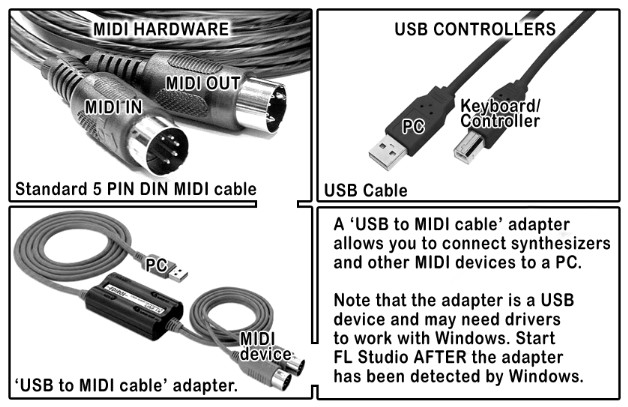
Cable types - You will either have a USB based keyboard/controller or hardware with 5-pin DIN MIDI connectors.Click here to see these connector types compared.
  • USB connected controller - If your controller has a USB port, then it will connect directly to your PC with a standard USB cable.
    • 1. Install any USB drivers that came with your controller. Many controllers use the standard Windows 'USB Audio Device (generic controller)', see the Input list.
    • 2. Connect the controller to your PC, turn it on and follow the Windows installation procedure. The standard USB 'connected ' process should happen.
    • 3. Start FL Studio AFTER the controller driver has been installed and proceed as described in the 'Setting input and output MIDI devices' section below.
  • MIDI cable connected controller - If you have a device with 5-Pin DIN connectors you will probably need to purchase a USB cable to MIDI cable adapter as shown. Most external audio interfaces have MIDI connector plugs on them, use those if present.
    • 1. Connect the MIDI cables to the MIDI IN and OUT ports on your MIDI interface hardware and turn it on. Make sure the MIDI OUT on the interface is connected to the MIDI IN on your MIDI device and/or the MIDI IN on the device is connected to the MIDI OUT on the MIDI interface.How many MIDI cables do I need? You need two MIDI cables if you want FL Studio to play your MIDI device and to use your MIDI device to control FL Studio. If you plan one-way communication, then you only need one MIDI cable.
    • 2. Install any USB drivers that came with your MIDI to USB adapter.
    • 3. Plug the MIDI adapter into your PC, turn it on and follow the Windows installation procedure. The standard USB 'connected ' process should happen.
    • 4. Start FL Studio AFTER the adapter driver has been installed and proceed as described in the 'Setting input and output MIDI devices' section below.

2. Set input and output MIDI devices

You may want to select an Input (a controller that plays FL Studio instruments) or Output device (something that connects to your PC and receives note data from FL Studio).

Output - Port Mapping

These options select a MIDI output interface so FL Studio can send MIDI signals to outboard gear (Synthesizer, Drum Machine, Sampler, etc). See the MIDI Settings page for more details.

Input - Connecting External Controller/s

If you have a USB/MIDI keyboard or controller that you would like to control using FL Studio, you will need to change some settings in the Input section. This contains a list of controller devices that have been detected by Windows (see section 1).
To activate a controller in FL Studio -
  1. Open FL Studio and make sure the 'Enable MIDI remote control' option is selected in the Options menu, MIDI input is disabled otherwise.
  2. Click on the device in the Input list, so that it is highlighted. If your device is listed in the Controller type drop-down menu, select it there also. If your controller does not appear by name this means it does not have custom drivers. If so, use the 'USB Audio Device (generic controller)'. If you do not see any options, you will need to re/install the appropriate drivers for your controller.
  3. With the controller highlighted select the Enable switch below the Input list. Each device selected in the Input list must be selected/deselected separately.
  4. If successful the MIDI activity light on the Main Panel will blink each time you play notes or move knobs on your controller. NOTE: If the 'Debug log' is open any MIDI data received by FL Studio is displayed and logged, useful for learning the MIDI CC numbers of controls or troubleshooting connections.
NOTE: For more detailed information on the rest of the settings in this section and further details on supported controllers go to the MIDI Settings page.

Troubleshooting

  • Nothing appears in the Input box? - Did you connect/start your controller AFTER opening FL Studio? It is necessary that your operating system has detected your controller BEFORE opening FL Studio. Close FL Studio, turn your controller off and on (unplug and reconnect the USB cable if it does not have a switch), wait for it to be detected by the PC (Windows makes a 'connected' sound when it successfully detects a USB device), then start FL Studio.
  • Items appear but don't respond - Click the Rescan MIDI devices button and then enable the device. If that does not work, close FL Studio, turn your controller off and on (unplug and reconnect the USB cable if it does not have a switch), wait for it to be detected by the PC (Windows makes a 'connected'sound when it successfully detects a USB device), then start FL Studio.

Velocity curve

If you are using a MIDI Keyboard or Pad Controller then click on the Link note on to: Velocity Curve button. Here you can fine-tune the relationship between MIDI input velocity (how fast/hard you strike the keys/pad) and the velocity value sent to instruments.